 k2k audio
 The Parameter Panel is the single right-side surface where K2K exposes whatever you’re currently editing — a node, a scope, a Pad, a Track, a Step. The same logic applies everywhere; only the subject changes.
What’s universal
- One panel, one focus. Whichever subject is “exposed” — a node’s Gear, a scope’s Gear, a Pad you right-clicked — owns the panel. Switching to another subject automatically deactivates the previously-exposed one. The active subject’s gesture target (Gear icon, scope’s Gear, Pad selection) is highlighted in orange.
- Decoupled from selection and audition. Exposing a subject in the Parameter Panel is independent of node selection on the canvas and independent of which buffer is being auditioned (the Eye in the Editor, playback in the Player). You can hear a downstream node while editing an upstream one, or look at a scope while tweaking the node feeding it.
- State persists. Switching the focused subject doesn’t lose anything — every parameter value is held on its owner. Coming back to the same subject restores the same panel state.
The exception
Per-Track FX Slots in the Player have a dedicated FX panel rather than living in the shared Parameter Panel. Everything else — nodes, scopes (via the MainViewer’s top-right Gear), Pads, Tracks, Steps, substeps — uses the shared panel.
The same panel surface, exposing different subjects:
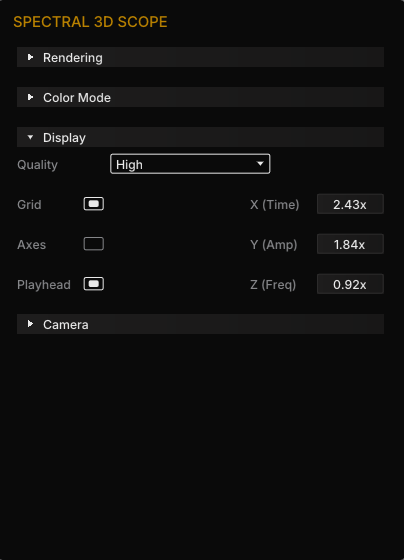
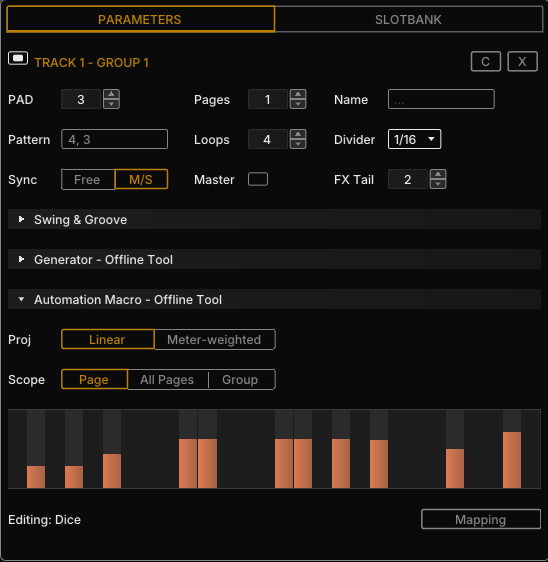
Layout
The panel is laid out top-down:
- Header — the subject’s name and type. This is also how you confirm what you’re currently editing.
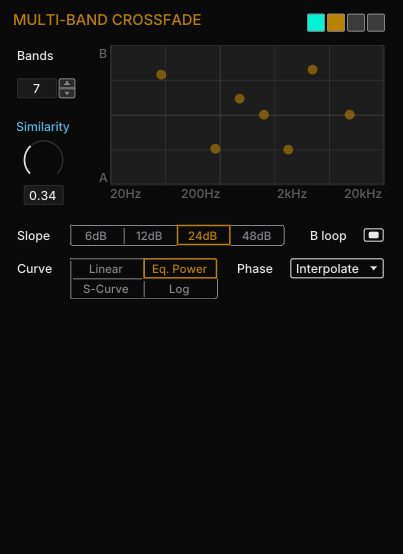
- Tabs — when a subject has many parameters, the panel groups them into tabs. The active tab is highlighted; switching tabs is instantaneous and doesn’t change which subject is exposed.
- Collapsing sections — within a tab (or directly under the header when the subject has no tabs), parameters are grouped into named sections. Each section can be collapsed to compact the panel; collapse state is remembered per section.
The intent is to keep parameters always in the same region of the screen, no matter which subject is exposed. Your eye learns where things live, and the panel never reflows around you.
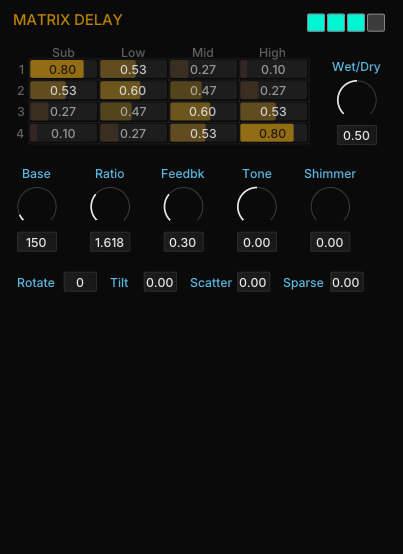
Three layout examples, from a single-section panel to one with multiple tabs and collapsing sections:
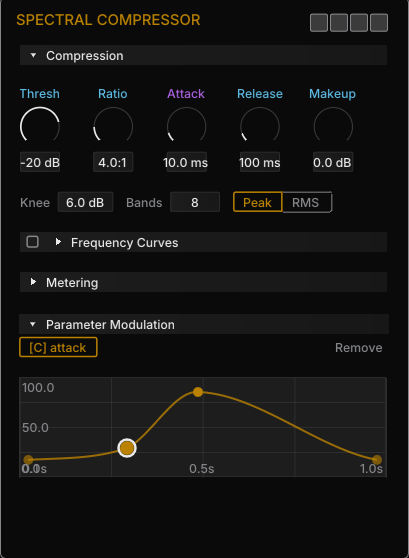
Modulation label colors
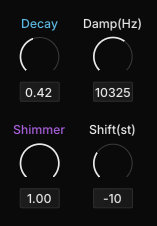
The modulation state of a parameter is signalled by its label color. Knob and slider bodies stay neutral — only the label changes.
| Label color | What it means |
|---|---|
White / light grey (#858689) | The parameter cannot be modulated. |
Blue / sky blue (#5BB8E0) | The parameter can be modulated but is currently static — no source routed. |
Magenta / lavender (#A860DB) | The parameter is currently modulated. The modulation editor appears at the bottom of the Parameter Panel for as long as the modulated parameter is exposed. |
Right-click a blue or magenta label to add, change, or remove modulation. The full flow — Curve, LFO, Sidechain — lives in the Modulation System reference.
Gestures
| Gesture | Effect |
|---|---|
| Double-click a widget | Reset the parameter to its default value. |
| Ctrl + drag a widget | Precision (fine) drag — slower response for micro-adjustments. |
| Right-click a modulatable parameter (sky-blue / lavender label) | Open the modulation menu — assign Curve / LFO / Sidechain or remove the current modulation. |
| Hover a Memory Snapshot slot | Tooltip describes the slot state and the available actions. |
Memory Snapshots
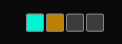
Most subjects with a Parameter Panel have four snapshot slots at the panel level. Snapshots capture the panel’s current parameter values into a slot, and let you recall them later.
Behavior
- Manual save / recall. Snapshots are static captures, not active states. There’s no continuous tracking — you take a snapshot when you want to remember a setting, you recall it when you want it back. A recalled snapshot becomes the live state but is not “linked” to the slot afterward; further edits don’t update the slot.
- Persistent. Snapshots are saved per node into a config file and persist across sessions, independent of any individual
.graphsave. - Per-panel scope. Each snapshot covers everything in that panel — across tabs and sections.
Slot states (color)
| Color | State |
|---|---|
| Dark grey | Empty slot. |
| Cyan | Filled — has a saved snapshot. |
| Orange | Last-recalled — a visual reminder of which capture you’re currently sitting on. |
Gestures
Hover any slot for a tooltip. The contract is:
- L-click — recall the snapshot in this slot.
- R-click — save the current panel state into this slot (overwrites).
- Shift + R-click — clear the slot.
Subjects without snapshots
Snapshots target subjects whose entire parameter set is meaningfully captured by a flat snapshot. A handful of subjects are excluded because their state model doesn’t fit that abstraction:
- Load Audio File — no snapshottable parameters; the file path is the state.
- Slicing category (the Slicer, Slice/Memory Slot, etc.) — slices are content, not parameter values.
- Click Repair — its detected-event list is data, not parameters.
- Envelope Follower — its useful state is the live envelope, not a static configuration.
Every other node, plus Pads, Tracks, Steps, and the scopes, expose the four-slot snapshot widget.
Performance note
A handful of parameter changes trigger heavy recomputation rather than cheap redraws. Most nodes in the CrossMorph category, every node in the Neural category, and the extractor nodes fall into this group: tweaking one of their parameters can take a noticeable fraction of a second — sometimes longer — before the result appears on the scopes.
This is the cost of the underlying analysis (spectral morphing, neural inference, full-buffer extraction), not a UI defect. The panel doesn’t lock during the recompute — but the visible result lags. Lower-latency previews and progressive rendering are planned for future releases; until then, factor in the wait when working in those categories.